Menu

Showing posts with label IHS. Show all posts

21 Sept 2023

IBM WebSphere 9.0.0.0 and IHS (IBM HTTP SERVER) Installation with Fixpack using Command Line (non-root) user

###### IM (Installation Manager) installation version 1.8.9.6 or Greater than that (non-root) user.

/app/BIN/IM/userinstc -acceptLicense  -installationDirectory /app/IBM/InstallationManager  -record /app/IBM/InstallationManager/install.xml  -dataLocation /app/IBM/IMLogs -showProgress


*******************************************************************************************

###### Check listAvailablePackages 

/app/IBM/InstallationManager/eclipse/tools/imcl listAvailablePackages -repositories /app/BIN/WAS9/repository.config


###### WAS installation version 9.0.0.0 and SDK installation.

/app/IBM/InstallationManager/eclipse/tools/imcl install com.ibm.websphere.ND.v90_9.0.0.20160526_1854 com.ibm.java.jdk.v8_8.0.6007.20200324_1954 -repositories /app/BIN/WAS9/repository.config,/app/BIN/SDK8/repository.config -installationDirectory /app/IBM/WebSphere/AppServer -sharedResourcesDirectory /app/IBM/IMShared -acceptLicense -showProgress


###### WAS FP installation version 9.0.5.3 or Greater than that.

/app/IBM/InstallationManager/eclipse/tools/imcl updateAll -repositories /app/BIN/FP9.0.5.3/WASFP9/repository.config -installationDirectory /app/IBM/WebSphere/AppServer -acceptLicense -showProgress


*******************************************************************************************

###### IHS (IBM HTTP SERVER) installation version 9.0.0.0 and SDK installation.

/app/IBM/InstallationManager/eclipse/tools/imcl install com.ibm.websphere.IHS.v90_9.0.0.20160526_1854 com.ibm.java.jdk.v8_8.0.6007.20200324_1954 -repositories /app/BIN/IHS9/repository.config,/app/BIN/SDK8/repository.config -installationDirectory /app/IBM/HTTPServer -sharedResourcesDirectory /app/IBM/IMShared -properties user.ihs.httpPort=8080,user.ihs.allowNonRootSilentInstall=true -acceptLicense -showProgress


###### Plugin installation version 9.0.0.0 and SDK installation.

/app/IBM/InstallationManager/eclipse/tools/imcl install com.ibm.websphere.PLG.v90_9.0.0.20160526_1854 com.ibm.java.jdk.v8_8.0.6007.20200324_1954 -repositories /app/BIN/PLUGIN9/repository.config,/app/BIN/SDK8/repository.config -installationDirectory /app/IBM/Plugins -sharedResourcesDirectory /app/IBM/IMShared -acceptLicense -showProgress


###### IHS (IBM HTTP SERVER) FP installation version 9.0.5.3 or Greater than that.

/app/IBM/InstallationManager/eclipse/tools/imcl updateAll -repositories /app/BIN/FP9.0.5.3/IHSPLUG/repository.config -installationDirectory /app/IBM/HTTPServer -acceptLicense -showProgress


###### PLUGIN FP installation version 9.0.5.3 or Greater than that.

/app/IBM/InstallationManager/eclipse/tools/imcl updateAll -repositories /app/BIN/FP9.0.5.3/IHSPLUG/repository.config -installationDirectory /app/IBM/Plugins -acceptLicense -showProgress

*******************************************************************************************


###### SDK FP installation version 8.0.3.0 or Greater than that.

/app/IBM/InstallationManager/eclipse/tools/imcl updateAll -repositories /app/BIN/FPSDK8.0/repository.config -installationDirectory /app/IBM/WebSphere/AppServer -acceptLicense -showProgress


Thanks :-)

11 Jul 2020

HTTP Host Header Injection (Apache and IBM HTTP SERVER- IHS)


  • To mitigate host header poisoning/attack kindly make sure.
  • Use the hostname instead of IP address in the header.
  • Can refuse a request if it doesn't have the desired or expected host header. 
  • For this, Add initial RewriteCond/RewriteRule pair to confirm the HOST requested is ABCDEF.com and error if not.
  • To restrict add below lines between <VirtualHost :443> OR  <VirtualHost :80>  


File Name : httpd-ssl.conf  OR ssl.conf
*************************************************************

LoadModule rewrite_module modules/mod_rewrite.so

<VirtualHost :443>

    ServerName ABCDEF
    RewriteEngine on
    RewriteCond %{HTTP_HOST} !^www.abcdef.com [NC]
    RewriteCond %{HTTP_HOST} !^(www.abcdef.com|abcdef.com)$ [NC]
    RewriteCond %{REQUEST_URI} !^/error [NC]
    RewriteRule ^.(.*) - [L,F]
</VirtualHost>

*************************************************************


 ## Restrict the Use of IP address  in URL to access application.

File Name : httpd-ssl.conf  OR ssl.conf
*************************************************************
<VirtualHost :443>

 ServerName ABCDEF.com
  ServerAlias www.ABCDEF.com

 #UseCanonicalName will use the hostname and port specified in the ServerName or ServerAlias

 UseCanonicalName On   


  # Restrict the Use of IP adderss in URL
  SetEnvIf Host "\d{1,3}\.\d{1,3}\.\d{1,3}\.\d{1,3}" HostHeaderIsIP=1
  RewriteEngine on
  RewriteCond %{ENV:HostHeaderIsIP} 1
  RewriteRule .* - [F]


</VirtualHost>

*************************************************************

Thanks ๐Ÿ˜Š

2 Sept 2017

How to Monitor IBM HTTP Server connections. & Get Apache Server info.


For unix user.

Step 1: Locate to /conf folder of IHS (IBM HTTP SERVER).

Screenshot 1:


Step 2: Edit the httpd.conf file.

Command >>  vi   httpd.conf


Step 3: Uncomment the mod_status.so module line

LoadModule status_module modules/mod_status.so

Screenshot 2:


Step 4: Uncomment the server-status location section and change the "allow from" to the localhost client ipaddress or domain

Screenshot 3:


Step 5: Go to the browser and check server-status.

Open URL : http://domain-name/server-status

Screenshot 4:


Step 6: For server info edit httpd.conf file  and uncoment module mod_info.so line

LoadModule info_module modules/mod_info.so

Screenshot :5


Step 7: Uncomment the server-info location section and change the "allow from" to the localhost client ipaddress or domain

Screenshot 6:


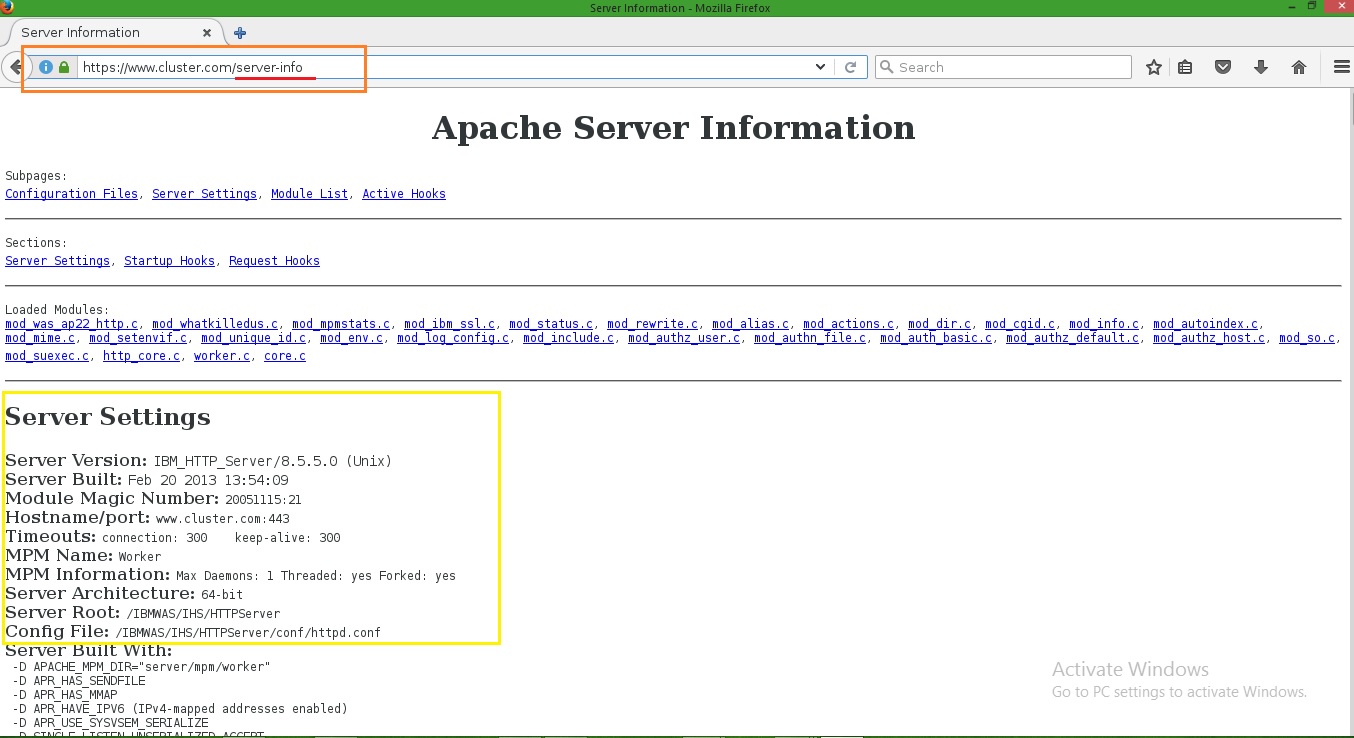
Step 8: Go to the browser and check Apache server-info

open URL : http://domain-name/server-info

Screenshot : 7


Reference Link : http://www-01.ibm.com/support/docview.wss?uid=swg21008489

Reference Link : http://www-01.ibm.com/support/docview.wss?uid=swg27035996&aid=1


Thanks :-)

16 May 2017

Multiple IHS in front of WebSphere® Application Server. (On Single Install).


Step 1:  Login to IBM WAS console.

Screenshot 1:


Step 2: Click on servers > server types > Web server

Already on  one webserver on Port 443 & 80 is working.


Screenshot 2 :


Step 3: To Create a New webserver   [ NEW_webserver  ]  in mycase .

Click on New..

Screenshot 3 :


Step 4: Provide a server name  > Next .

Screenshot 4:


Step 5: Default IHS selected  > Next .


Screenshot 5:


Step 6: Provide NEW port no [ 5080 for http ] in mycase  >> Next

Screenshot 6:


Step 7: Review Summary >> Finish .

Screenshot 7:


Step 8: Click on Review.

Screenshot 8:


Step 9: Select Synchronize changes with Nodes >> Save >> OK .

Screenshot 9:


Step 10 : Now we have created the NEW_webserver , with status stopped.

Screenshot 10 :


Step 11 : Copy the working http.conf with [ NEWhttp.conf ]  in my case.

Screenshot 11:


Step 12 : Open the Newhttp.conf  and make changes.


1 >> PID File Location

2 >> Error logs location.
 3 >> Access logs location.
4 >> Servername
5 >> Listen Address From (:80 ) and ( :443 )  to  (5080) and (50443)  in mycase.
6 >> Virtual host port and ipaddress.
7 >> New Webserver Plugin file location.


Screenshot 12-1 :


Screenshot 12-1 :


Step 13 : Use Diff command to check the Diffrence between them.

Screenshot 13:


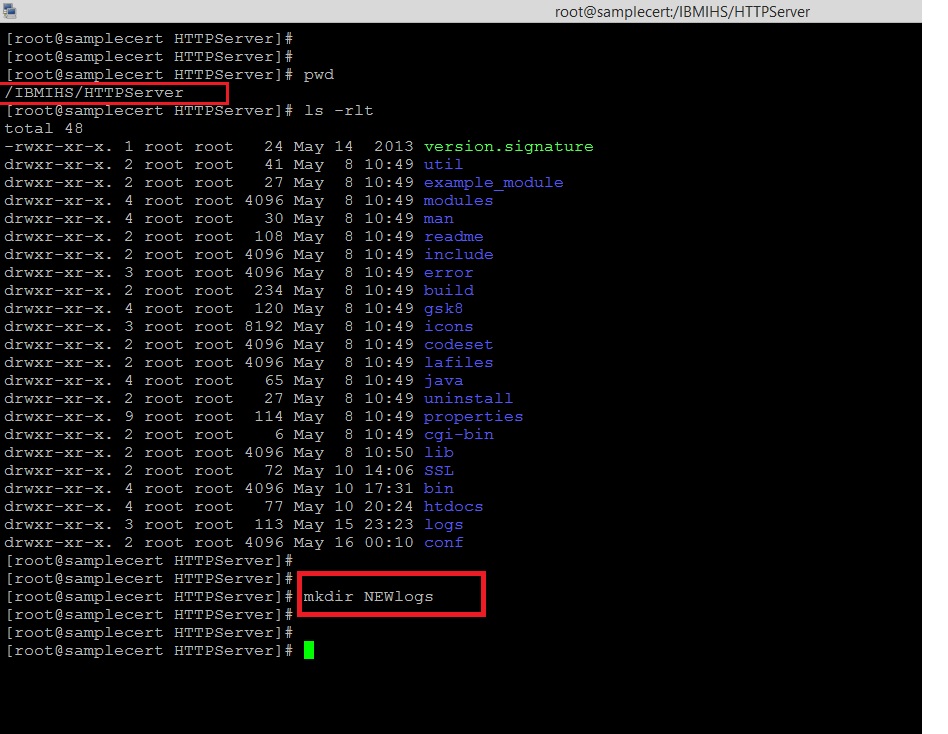
Step 14: Make a new folder of NEWlogs on IHS home .

Screenshot 14:


Step 15 : go to Webserver > NEW_webserver >> Configuration file name > Apply > Review > Synchronize changes with Nodes > Save.


Change the paramerts from console also.

Screenshot 15:


Step 16 : Changes in log file from console >>  Apply > Review > Synchronize changes with Nodes > Save.

Screenshot 16-1:


Screenshot 16-2:


Step 17 : Review Virtual Hosts from Console >>

Screenshot 17:


Step 18 : Add Virtual Hosts  from Console .

Environment > Virtual Hosts > default_host > Host Aliases

Screenshot 18-1 :


Screenshot 18-2 : Add a new Virtual Hosts Port : (5080) and  (50443)


Step 19: Add 5080 and 50443  >> >>  Apply > Review > Synchronize changes with Nodes > Save.


Screenshot 19 -1:


Screenshot 19-2:


Step 20: Review host entries.

Screenshot 20:


Step 21: Select  Enterprise Applications > calendar_war > Virtual hosts > select default_host > OK.


Screenshot 21:


Step 22 : Now Start the NEW_webserver from shell.

Screenshot 22:


Step 23: Generate and Propagate plugins from console.

Screenshot 23:


Step 24 : Manage the deployed application from console.

Screenshot 24:


 Clear the logs and  Restart the Application.


Step 25 : Check the IHS at port 5080 

Screenshot 25:


Step 26 : Check the calendar.war Application at port 5080 

Screenshot 26:


Step 27 : Check the IHS at port 50443 

Screenshot 27:


Step 28 : Check the calendar.war Application at port 50443 


Screenshot 28-1:


Screenshot 28-2:


Thanks :-)  Middleware Team  :-) !