Menu

Showing posts with label Monitoring. Show all posts

2 Nov 2025

🐧 Linux Shell Scripting for Beginners – Complete Tutorial Series.

  • A 13-part practical shell scripting course for DevOps and Middleware Engineers.

πŸ’‘ How This Tutorial Series Will Help You

  • ✔ Build a strong foundation in Linux Shell scripting — from basics to automation.
  • ✔ Automate daily Middleware and DevOps tasks: monitoring, backups, and log management.
  • ✔ Write scripts for Middleware platforms like Tomcat, Jenkins, and WebSphere.
  • ✔ Debug, schedule, and manage production-ready shell scripts confidently.
  • ✔ Perfect for Sysadmins, Middleware, and DevOps Engineers upgrading to Cloud roles.

πŸ“š Complete Course Index

🐚 Part 1: What is a Variable?
Learn how variables store data and simplify automation scripts. Foundation of all shell logic.
πŸ“₯ Part 2: Reading User Input in Shell
Make interactive scripts using read command with Jenkins and Tomcat examples.
Use decision-making in your scripts with examples checking files, services, and network health.
Automate repetitive DevOps tasks like log cleanup, backups, and status monitoring.
Write modular, reusable functions — restart Tomcat or back up Jenkins in one click.
πŸ“¦ Part 6: Arrays & Arguments
Store multiple values, manage user inputs, and process server lists in scripts.
πŸ“ Part 7: File Handling in Shell
Learn how to read, write, append, and handle configuration or log files safely.
πŸ’‘ Part 8: Debugging & Logging
Find and fix script errors, use logs, and enable debug mode for safe execution.
πŸ•’ Part 9: Scheduling & Automation
Use cron and @reboot jobs to run scripts automatically for health checks or backups.
Create a production-ready monitoring script for Tomcat, Jenkins, and NGINX with auto-restart.
🧾 Part 11: Log Management & Rotation
Automate log rotation with logrotate and custom retention scripts for Middleware systems.
Perform automated backup and restore for Jenkins, Tomcat, and WebSphere with rollback support.
Run multiple jobs in parallel, monitor background processes, and speed up automation workflows.

πŸš€ Why MiddlewareBox Shell Scripting Series?

  • ✅ Step-by-step, beginner-friendly explanations.
  • ✅ Each topic includes real DevOps & Middleware context.
  • ✅ Examples with Output and Error handling.
  • ✅ Simple language for better understanding.

✨ Start Learning Now → Part 1: What is a Variable?
& build your own scripts from scratch! πŸ’ͺ

1 Nov 2025

🎯Shell Scripting for Beginners – Part 10: Middleware Health Monitoring Project (Mixed Example).

  • This is our final, beginner-friendly project 🎯 — where we'll combine everything you've learned: variables, if-else, loops, functions, logging, and cron automation.
  • Let's create a simple Middleware Health Monitoring script that checks Tomcat, Jenkins, Docker, MySQL, and SSL expiry.

πŸ“‘ Table of Contents


1️⃣ Overview

This script uses:

  • Variables – store names, logs, and domains.
  • Functions – reusable checks for each service.
  • If-Else – to decide if a service needs restart.
  • For loop – to check multiple Docker containers.
  • While loop – to retry connection.
  • Logs – write output to a file.

2️⃣ Full Middleware Health Monitoring Script

#!/bin/bash
# MiddlewareBox - Simple Health Monitor

LOG="/var/log/middleware_health.log"
domain="middlewarebox.com"
echo "===== Middleware Health Check =====" >> $LOG
date >> $LOG

# --- Function to check Tomcat ---
check_tomcat() {
  echo "Checking Tomcat..."
  if pgrep -f "org.apache.catalina.startup.Bootstrap" > /dev/null; then
     echo "✅ Tomcat is running" | tee -a $LOG
  else
     echo "🚨 Tomcat is down, restarting..." | tee -a $LOG
     /opt/tomcat/bin/startup.sh
     echo "✅ Tomcat restarted" | tee -a $LOG
  fi
}

# --- Function to check Jenkins ---
check_jenkins() {
  echo "Checking Jenkins..."
  if systemctl is-active --quiet jenkins; then
     echo "✅ Jenkins is active" | tee -a $LOG
  else
     echo "🚨 Jenkins not running, restarting..." | tee -a $LOG
     systemctl restart jenkins
     echo "✅ Jenkins restarted" | tee -a $LOG
  fi
}

# --- Function to check MySQL ---
check_db() {
  echo "Checking MySQL..."
  if mysql -u root -pSecret -e "show databases;" > /dev/null 2>&1; then
     echo "✅ MySQL connection successful" | tee -a $LOG
  else
     echo "🚨 MySQL connection failed" | tee -a $LOG
     echo "Retrying in 5 seconds..."
     sleep 5
     mysql -u root -pSecret -e "show databases;" && echo "✅ MySQL reconnected" | tee -a $LOG
  fi
}

# --- Check Docker Containers using FOR Loop ---
check_docker() {
  echo "Checking Docker containers..."
  for c in nginx webapp db
  do
    status=$(docker inspect -f '{{.State.Status}}' $c 2>/dev/null)
    if [ "$status" != "running" ]; then
      echo "🚨 Container $c is $status, restarting..." | tee -a $LOG
      docker start $c
    else
      echo "✅ Container $c is running" | tee -a $LOG
    fi
  done
}

# --- Check SSL certificate expiry ---
check_ssl() {
  echo "Checking SSL expiry..."
  expiry=$(echo | openssl s_client -servername $domain -connect $domain:443 2>/dev/null | openssl x509 -noout -dates | grep notAfter | cut -d= -f2)
  days_left=$(( ($(date -d "$expiry" +%s) - $(date +%s)) / 86400 ))
  if [ $days_left -le 15 ]; then
    echo "⚠️ SSL expires in $days_left days!" | tee -a $LOG
  else
    echo "✅ SSL valid for $days_left days" | tee -a $LOG
  fi
}

# --- MAIN EXECUTION FLOW ---
check_tomcat
check_jenkins
check_db
check_docker
check_ssl

echo "✅ Health check completed successfully!" | tee -a $LOG
echo "========================================" >> $LOG
πŸ’¬ Example Output:
✅ Tomcat is running
✅ Jenkins is active
✅ MySQL connection successful
✅ Container nginx is running
✅ SSL valid for 70 days
✅ Health check completed successfully!

3️⃣ Automate the Script

# Run every 30 minutes
*/30 * * * * /opt/scripts/middleware_health.sh >> /var/log/health_cron.log 2>&1

# Run automatically on system reboot
@reboot /opt/scripts/middleware_health.sh >> /var/log/boot_health.log 2>&1
πŸ’¬ Output (Cron log):
[BOOT] Health check executed
✅ All services healthy

🏁 Summary

  • ✅ Combined all major shell scripting concepts.
  • ✅ Checks Tomcat, Jenkins, Docker, MySQL, and SSL in one file.
  • ✅ Uses if, for, functions, and basic while retry logic.
  • ✅ Can run manually or via cron / reboot automation.

πŸ“ Shell Scripting for Beginners – Part 7: File Handling in Shell.

  • In Middleware & DevOps automation, file handling is everywhere — reading logs, writing reports, rotating backups, or watching live output.
  • Let's learn how to read, write, append, and monitor files in shell scripts with real-world Middleware examples.

πŸ“‘ Table of Contents


πŸ“– 1️⃣ Reading Files

Example 1: Read File Line by Line

#!/bin/bash
filename="/opt/scripts/serverlist.txt"
while read -r line; do
  echo "Processing server: $line"
done < "$filename"
πŸ’¬ Output:
Processing server: app1
Processing server: app2
Processing server: app3

Example 2: Display Tomcat Log Errors

#!/bin/bash
grep "ERROR" /opt/tomcat/logs/catalina.out
πŸ’¬ Output:
ERROR [localhost-startStop-1] ... Application failed to start
ERROR [main] ... Database connection refused
πŸ’‘ Tip: Use grep -i error to ignore case.

✍️ 2️⃣ Writing & Appending Files

Example 3: Write Output to File

#!/bin/bash
echo "Backup started at $(date)" > /opt/scripts/backup.log
echo "Compressing files..." >> /opt/scripts/backup.log
tar -czf /tmp/backup.tar.gz /opt/data && echo "Backup successful" >> /opt/scripts/backup.log
πŸ’¬ Output File Content:
Backup started at Sat Nov 1 02:00:00 IST 2025
Compressing files...
Backup successful

Example 4: Append Deployment Status

#!/bin/bash
env=$1
status=$2
echo "$(date) - $env deployment $status" >> /opt/scripts/deploy_history.log
πŸ’¬ Output File Content:
Sat Nov 1 02:15:00 IST 2025 - dev deployment SUCCESS
Sat Nov 1 02:17:00 IST 2025 - prod deployment FAILED

Example 5: Log WebSphere Cleanup Activity

#!/bin/bash
logfile="/opt/IBM/WebSphere/AppServer/logs/cleanup.log"
echo "$(date): Cleaning old logs..." >> $logfile
find /opt/IBM/WebSphere/AppServer/logs -type f -mtime +7 -delete && echo "✅ Logs cleaned" >> $logfile
πŸ’¬ Output File:
Sat Nov 1 02:30:00 IST 2025: Cleaning old logs...
✅ Logs cleaned

πŸ” 3️⃣ Monitoring Log Files

Example 6: Live Tail of Tomcat Logs

#!/bin/bash
echo "Monitoring Tomcat logs..."
tail -f /opt/tomcat/logs/catalina.out
πŸ’¬ Output:
Monitoring Tomcat logs...
[INFO] Server startup completed in 2200 ms
[WARN] Deprecated API in use
[ERROR] Connection timeout to DB

Example 7: Auto-restart Jenkins on Log Failure

#!/bin/bash
tail -Fn0 /var/log/jenkins/jenkins.log | \
while read line; do
  echo "$line" | grep "ERROR" &>/dev/null
  if [ $? = 0 ]; then
    echo "🚨 Error detected, restarting Jenkins..."
    systemctl restart jenkins
  fi
done
πŸ’¬ Output:
[ERROR] Jenkins job queue stuck
🚨 Error detected, restarting Jenkins...

Example 8: Monitor NGINX Access Logs for High Load

#!/bin/bash
tail -n 100 /var/log/nginx/access.log | awk '{print $9}' | sort | uniq -c
πŸ’¬ Output:
500 3
404 7
200 90
301 5
πŸ’‘ Tip: Use this for quick traffic analysis on your Middleware or DevOps pipeline servers.

⚠️ 4️⃣ Error Handling & Debugging

  • Use set -e to exit on first failure.
  • Redirect errors → 2>> error.log to capture exceptions.
  • Validate file existence before reading:
if [ ! -f "$filename" ]; then
  echo "❌ File not found: $filename"
  exit 1
fi
If your script suddenly exits, check for missing files or permission issues in /var/log/messages or your custom error log.

🏁 Summary

  • Read files line by line to automate configuration or host processing.
  • Write and append logs for auditing and historical tracking.
  • Monitor live logs (Tomcat, Jenkins, NGINX) using tail -f.
  • Add error handling to avoid silent file issues in production.

6 Sept 2018

Monitor Apache httpd Proxy balancer-manager status

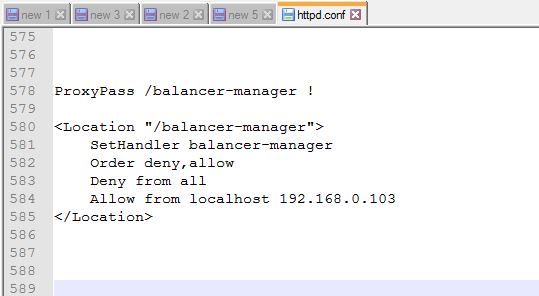
Step 1: For  Proxy balancer-manager status add below configuration in httpd.conf

Note: Enable "mod_status" module


###########################################

LoadModule status_module modules/mod_status.so 

<Location "/balancer-manager">
    SetHandler balancer-manager
    Order deny,allow
    Deny from all
    Allow from localhost 192.168.0.103
</Location>

ProxyPass /balancer-manager !

###########################################


Screenshot-1:


Screenshot-2:


Screenshot-3:


Reference link:


Thanks :-)


How to monitor Apache httpd ModJK status


Step 1: For Jk Status Manager status add below configuration in httpd.conf

Note: Enable "mod_status" module


############################################
LoadModule status_module modules/mod_status.so 

<Location "/jkstatus">
    JkMount status
    Order deny,allow
    Deny from all
    Allow from localhost 192.168.xxx.xxx
</Location>

JkMount   /jkstatus/*  status

############################################


Step 2: Edit workers.properties file  and add (status)  on worker & worker.list


## Status worker for managing load balancer

       worker.status.type=status

# #Define list of workers that will be used
# #for mapping requests

      worker.list=loadbalancer,status


Step 3: Use https://localhost/jkstatus


Reference link:  https://access.redhat.com/documentation/Mod_jk/Httpd

                              HTTP Status Codes - Code A Site Resource

Learn, 


Thanks :-)

Monitor Apache httpd process/thread status


Step 1: Enable "mod_status" module on $apache_home/conf/httpd.conf file.


Step 2: Add below lines to get status of  Apache server.


####################################

LoadModule status_module modules/mod_status.so 
ExtendedStatus On

<Location "/server-status">
    SetHandler server-status
    Order deny,allow
    Deny from all
    Allow from localhost 192.168.105.170 
</Location>

####################################


Step 3: Now, check through browser using  http://localhost/server-status

Screenshots : 


Thanks :-)